

Connect ChatGPT and Claude to your business tools like Gmail, CRM, and Notion. Learn how AI connectors automate workflows and save hours per week.
The power of large language models (LLM)—ChatGPT, Claude, etc.—comes from their ability to access, analyze, and act on your business data. By connecting your favorite LLM directly to your email, calendar, CRM, and design tools, you maximize its capacity to provide relevant and successful outputs.
This article will explore how AI connectors work across platforms like ChatGPT and Claude, showing you practical ways to automate repetitive tasks and free up your team's time for high-value work.
These integration capabilities will be your next strategic advantage in adopting the now essential AI-First Mindset that will keep your business striving.
What are AI Connectors?
AI connectors are integrations that link large language models directly to your business applications. Instead of copying information from Gmail into ChatGPT or manually pulling data from your CRM, connectors let the AI access those systems automatically.
Think of connectors as bridges between your AI assistant and the tools you already use every day. The AI reads your emails, checks your calendar, scans your CRM pipeline, and pulls files from cloud storage—all without you switching tabs or copying data.
This changes how AI works in practice. Without connectors, you feed context to the AI through prompts. With connectors, the AI already has the context. You're managing access and permissions instead of writing detailed instructions.
The shift from prompt engineering to context engineering
Early AI adoption focused on crafting perfect prompts.
That skill still matters, but it's becoming less critical.
Modern AI systems with connectors don't need exhaustive instructions because they already have access to your data. You're no longer feeding context manually—you're simply managing what systems the AI can access and what actions it can take.
This is called context engineering.
For businesses, this means less time writing prompts and more time defining workflows. The AI handles the repetitive parts—finding information, drafting responses, updating records. You focus on decisions and strategy.
How Connectors improve business operations
Your sales team can save hours on lead enrichment, proposal generation, and scheduling. Instead of manually checking HubSpot, drafting emails, and updating calendars, your favorite LLM does all three in sequence.
Your marketing team can pull campaign performance data, draft reports, and update project trackers—all without switching tools or manual data entry. The LLM becomes a layer that connects systems and executes multi-step workflows.
The ROI is direct: reducing manual data transfer and task switching saves hours per employee per week. Those hours compound across teams. A ten-person sales team saving five hours each per week gains 200 hours monthly—equivalent to hiring another full-time employee without adding headcount.
Why this matters for your business
If you're running a growing company, connectors represent a practical path to AI ROI. You don't need to redesign processes or retrain teams. You connect AI to existing tools and define what tasks it should handle.
The businesses gaining advantage right now aren't waiting for perfect implementations. They're testing connectors, learning what works, and building operational muscle. When connector capabilities improve—and they will—those businesses will already know how to deploy them at scale.
The alternative is waiting until connectors are flawless. By then, competitors will have months or years of operational advantage. They'll have refined workflows, trained teams, and proven ROI. Catching up becomes harder.
The strategic move is to start experimenting now, even if current implementations feel clunky. The learning curve you climb today determines your competitive position tomorrow.
Setting up connectors in ChatGPT
ChatGPT makes connector setup straightforward. Here's the process.
Accessing the Connector Library
- Click Settings in the bottom right corner
- Navigate to Apps and Connectors
- Browse available integrations or search for specific tools
You'll see connectors for Gmail, Google Calendar, HubSpot, Canva, GitHub, Notion, and dozens more. Each connector displays which modes it supports—chat, deep research, agent, or some combination.
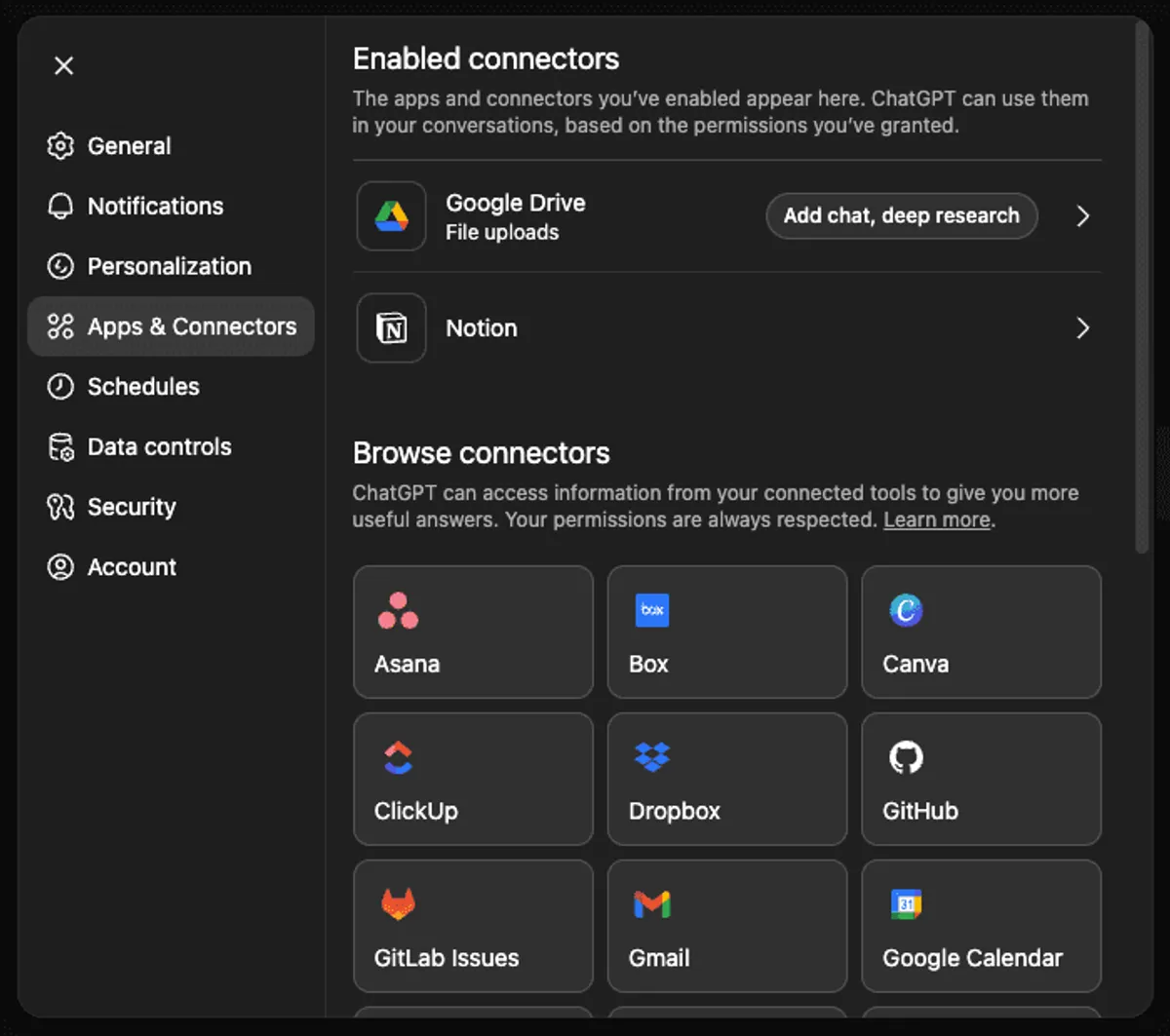
Enabling a Connector
Click any connector to see its capabilities and required permissions. For Gmail, you'll grant access to read emails and, if you enable agent mode, send messages and apply labels.
Permission levels matter. If you only want the AI to read data, enable chat or deep research. If you want it to take actions, enable agent mode. You can change this anytime.
Running a multi-Connector workflow
Once you've enabled connectors, you can combine them in a single task.
Example workflow
"Review last week's sales activity across HubSpot, Gmail, and Google Calendar. Identify deals to prioritize, draft follow-up emails, and flag any missing pipeline entries."
ChatGPT then:
- Queries HubSpot for open deals and recent activity
- Scans Gmail for related conversations
- Checks Google Calendar for past and upcoming meetings
- Cross-references all three to identify gaps and priorities
- Delivers a report with actionable next steps
This takes under ten minutes. Doing it manually would take an hour or more.
Setting up Connectors in Claude
Claude offers similar connector categories but adds more granular control over what the AI can do.
Accessing the Connector Library
- Click Settings in the bottom right corner
- Navigate to Connectors
- Browse available integrations or search for specific tools
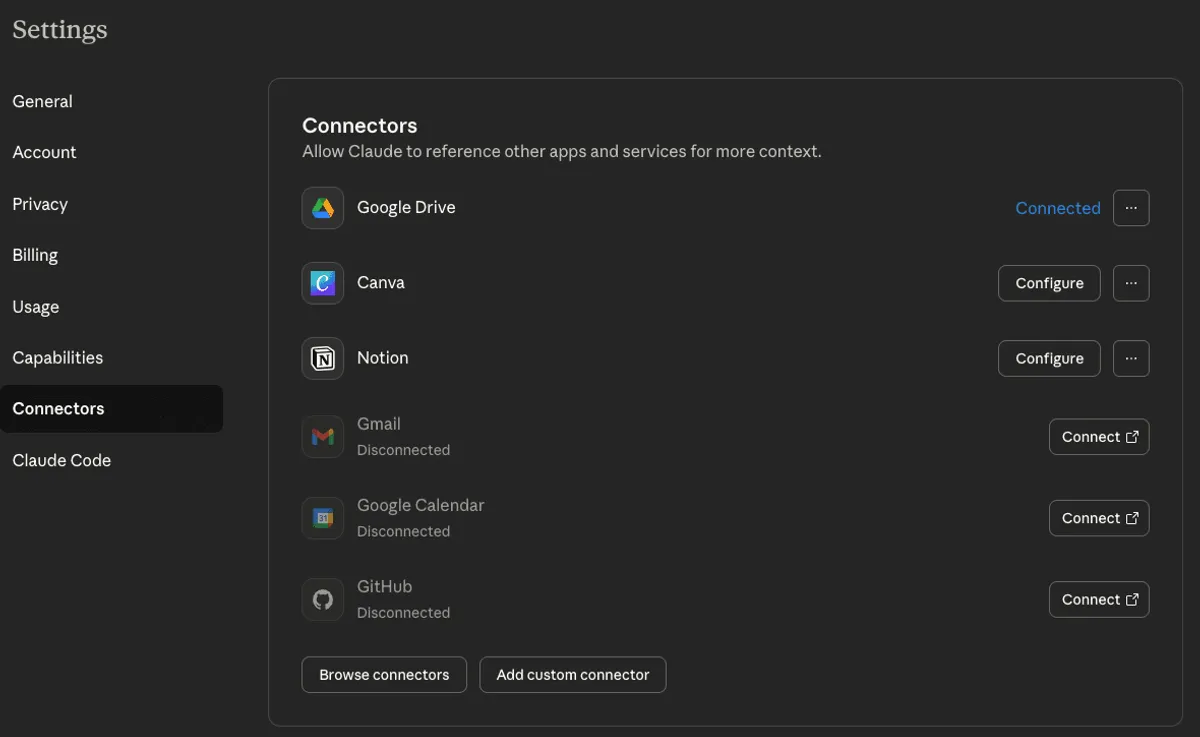
Granular Permission Controls
When you enable a connector in Claude, you see specific action types. For Notion, you might see:
- Search pages
- Fetch page content
- Create pages in markdown
- Update existing pages
- Move pages
- Duplicate pages
- Delete pages
You can enable all actions or select only the ones you trust. If you want the AI to read and update Notion but never delete anything, you disable the delete action.
💡 This level of control reduces risk and gives you the freedom to manage exactly what the AI can and can't do.
Running Deep Research with multiple sources
Claude's deep research works like ChatGPT's, but with tighter integration to extended thinking. When you enable extended thinking, Claude spends more time reasoning through complex queries before acting.
Example
"Analyze all emails from last week, check my Notion CRM for related contacts, and identify anyone I should add to my LinkedIn outreach campaign."
Claude then:
- Scans emails for new contacts
- Cross-references them against your Notion database
- Identifies gaps
- Prepares a list of LinkedIn profiles to add to your outreach tool
You get a detailed report explaining its reasoning and recommendations.
Key Takeaways
- Context beats prompts — Modern AI systems with connectors already have access to your data. You're managing permissions and workflows, not writing detailed instructions.
- Three capability levels matter — Chat mode for quick queries, deep research for comprehensive analysis, agent mode for taking actions across your systems.
- Security requires attention — Separate internal and external connectors. Use granular permissions. Audit what your AI can access and change.
- Practice compounds — The learning curve you climb today determines your competitive position when these tools mature further.
Start small, test one connector, and expand as you learn what delivers value for your specific operations.
☎️ Need help setting connectors up? Book a call with us
More Articles

Context Architecture: The AI Skill That's Replacing Prompt Engineering
Prompt engineering used to matter. Now the models are smart enough that plain English works. The real unlock is context architecture — giving AI permanent access to your business context so every output builds on the last.

Your Sales Team Spends 70% of Their Time on Admin Work—Here's What Changes That
Sales reps spend less than a third of their time actually selling. The rest disappears into admin. Here's how AI-native CRMs are changing that—and which tools are leading the shift.

The 5-Tool AI Stack Replacing 100+ Subscriptions for Small Businesses
Most small businesses are drowning in AI subscriptions they never chose. Here's how a lean five-tool stack — Claude, Notion, Google Workspace, Slack, and Mercury — replaced an entire category of software and headcount, without the overhead.