

Build AI-powered Zapier automations in under an hour. Step-by-step guide to automate emails, leads, and workflows with AI intelligence.
Zapier is one of the oldest platforms in the automation game. With connections that cover over 8,000 apps, Zapier automations remove manual work and deliver measurable gains for any business.
This article explores how Zapier works and how to build practical automations that save time and money. You'll see examples of automations you can build this week and get practical tips to maximize ROI without overcomplicating your tech stack.
TL;DR
- Zapier is one of the fastest ways to automate repeatable work—especially when you combine its 8,000+ app integrations with AI that can classify, draft, research, and make decisions inside your workflows.
- This article walks you through how to build an AI-powered email automation in Zapier in under an hour, from Gmail triggers to AI-generated draft replies.
- We share additional high-impact automation examples for sales inquiries, lead qualification, meeting notes, expense tracking, and customer support triage.
- Ideal for businesses wanting to reduce manual work, speed up workflows, and integrate AI into everyday business processes without engineering resources.
How Zapier became the must-have automation tool
Zapier started in 2011 as an integration platform—a way to connect apps that didn't talk to each other. You could set up simple workflows: when someone fills a form, add them to your CRM. When an email arrives, create a task.
By 2024, Zapier evolved into an AI automation ecosystem. The platform now connects 8,900+ apps, but more importantly, it gives those connections intelligence. Workflows can now analyze email sentiment, research prospects across multiple sources, draft personalized responses, and decide when to escalate to a human.
Here's the distinction that matters:
- Traditional automation executes predetermined steps. If X happens, do Y. Every time. No exceptions.
- AI-powered automation makes decisions within workflows. It evaluates context, adapts responses, researches information, and loops through actions until it achieves the goal.
How to build your first AI-powered Zapier automation step by step
Watch a live recording of this workflow here:
Step 1: Choose your trigger
Every automation starts with a trigger. A trigger is the event that starts your workflow running. Common triggers include:
- New email arrives in Gmail or Outlook
- Form submission on your website
- New row added to a spreadsheet
- Calendar event created in Google Calendar
- Message posted in Slack
- New lead appears in your CRM
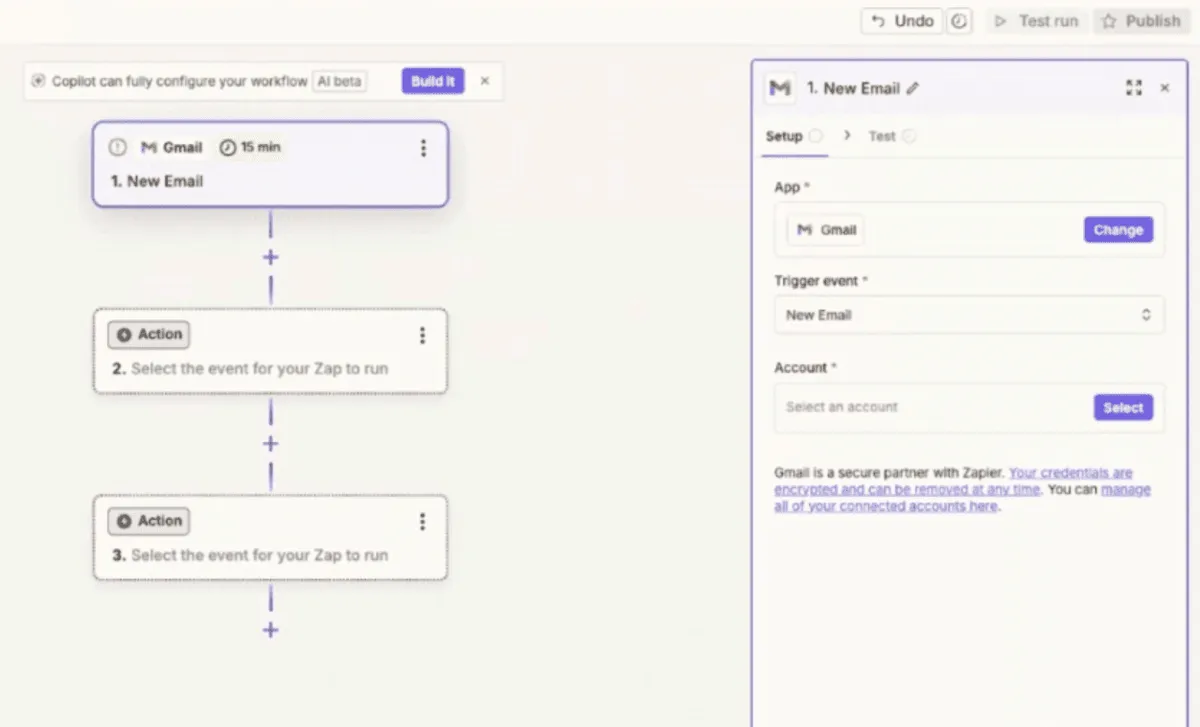
For this example, start with Gmail as the trigger.
- Click "Create" in Zapier
- Select "Trigger."
- Search for Gmail and choose "New Email" as the trigger event.
💡 Polling vs. instant triggers: Gmail uses polling, which means Zapier checks for new emails every 15 minutes on most plans. Some integrations offer instant triggers that fire immediately when an event occurs. For sales inquiries, 15-minute polling works fine—fast enough to maintain responsiveness without requiring a premium plan.
- Connect your Gmail account and configure the trigger. You can monitor your full inbox or filter by labels. If you tag sales inquiries with a specific label in Gmail, select that label to narrow the scope. Otherwise, monitor the full inbox and use filtering later in the workflow.
- Test the trigger. Zapier pulls three recent emails as sample data. This data flows through the rest of your workflow, so you need it to configure subsequent steps.
Step 2: Add intelligence with AI by Zapier
Now add AI to analyze and respond to emails.
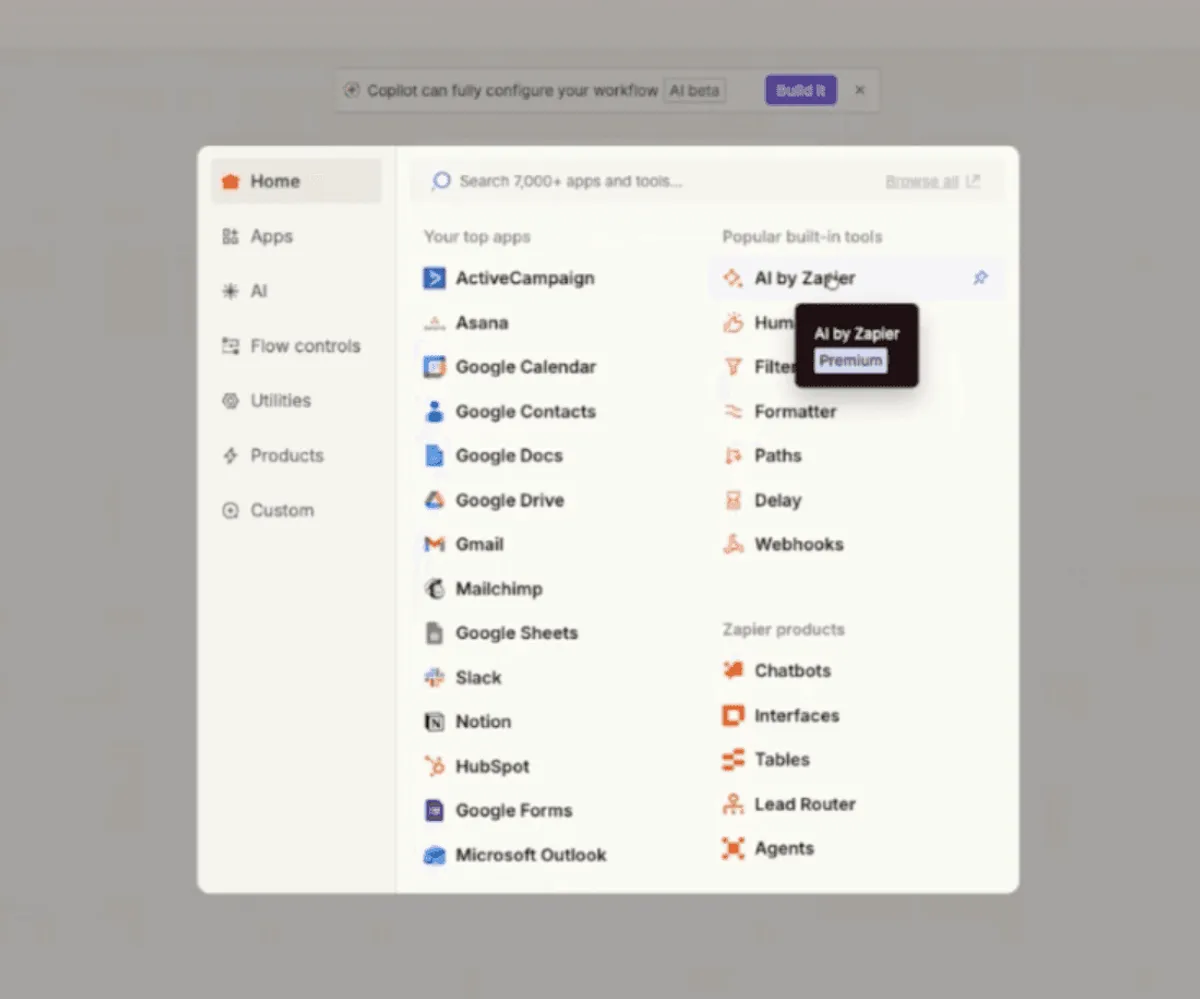
- Click the plus icon to add an action,
- Search for "AI by Zapier."
- Select "Custom Prompt" as the action event.
- Build your prompt. The prompt tells the AI what to do with each email. Start simple:
"Check each email. If it's a sales inquiry asking about services or pricing, draft a professional response that includes our offerings and rates. If it's spam, ignore it. If it's a partnership request, evaluate whether it's legitimate and draft an appropriate reply."
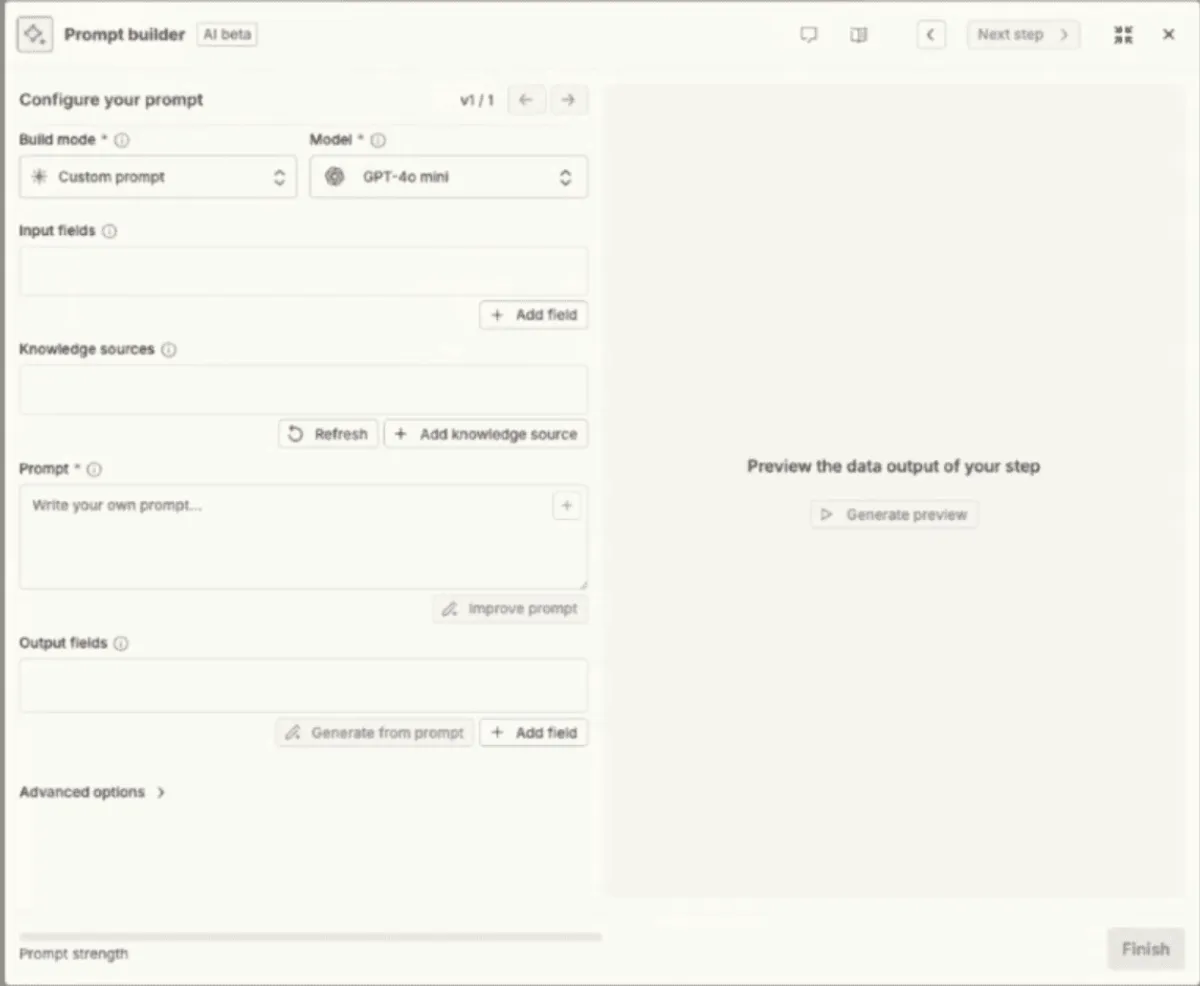
- Click "Improve Prompt." Zapier's AI rewrites your instructions with better structure and clarity. This feature helps non-technical team members get good results without learning prompt engineering.
- Click "Add Knowledge Source" and connect documents that contain information the AI needs:
- Pricing sheets from Google Drive or Notion
- Service descriptions and product details
- FAQ documents with common questions and answers
- Brand voice guidelines to maintain consistent tone
This is necessary—without knowledge sources, Zapier AI invents answers or provides generic replies. With them, it drafts accurate, on-brand responses that reflect your actual offerings. For this example, add your pricing directly in the prompt if you don't have many knowledge documents:
"Our 12-week AI training program costs $X for up to 50 people. Consulting starts at $Y per month for AI leadership advisory. Custom automation projects are available on demand at $Z per hour."
- Click "Generate Preview" to test the AI action. It processes one of the sample emails from your trigger and shows the output.
- Review the draft response. Does it accurately represent your services? Is the tone appropriate? Does it answer the inquiry? If the output needs improvement, refine your prompt. Add more context, clarify instructions, or provide examples of good responses. Test again until you're satisfied.
Step 3: Create the Draft reply
The AI generates a response. Now we have to send it back to Gmail as a draft.
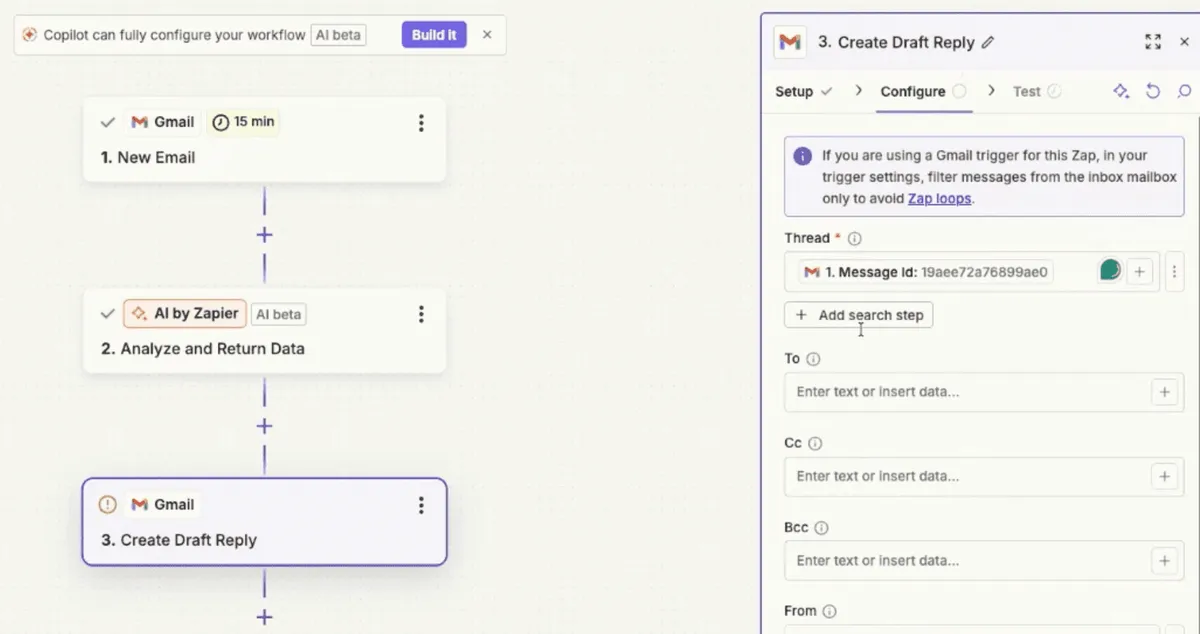
- Add another action and search for Gmail.
- Select "Create Draft Reply."
- Connect the AI output to the draft.
- Click in the "Message" field and select the forward slash to open the data picker.
- Find "AI by Zapier" and select the output from your prompt. This inserts the AI-generated text into the draft.
- Set the "Thread ID" field. This ensures the draft appears as a reply to the original email rather than a new message.
- Click the forward slash again, find "New Email in Gmail," and select "Message ID." Zapier automatically maps the correct thread.
- Test the step. Zapier creates an actual draft in your Gmail account using the sample data.
- Open Gmail and check the drafts folder. You should see a draft reply to one of the test emails with the AI-generated content.
Step 4: Add filtering and routing
Right now, the automation processes every email. Add filtering to handle only relevant messages and route different types appropriately.
- Insert a "Filter" step between the trigger and the AI action.
- Click the plus icon after the Gmail trigger and select "Filter by Zapier." Set conditions:
- For more sophisticated routing, use the AI itself to classify emails. Add an AI by Zapier action before the filter with a simple prompt:
Step 5: Publish and monitor
Click "Publish" to activate your automation. Zapier now checks your Gmail every 15 minutes, processes new emails through your AI workflow, and creates draft replies.
Start with human review
Don't send emails automatically at first. Create drafts and review them for a few weeks. Check each morning:
- How many drafts did the automation create?
- Are the responses accurate and appropriate?
- What changes do you make before sending?
Note patterns in your edits.
- If you consistently adjust tone, add that guidance to your prompt.
- If the AI misses certain details, add them to your knowledge sources.
- If specific types of emails get poor responses, refine your classification logic.
After two to three weeks of monitoring, you'll see whether the automation performs reliably. If 95% of drafts need no changes or only minor tweaks, consider switching from "Create Draft" to "Send Email." The automation then handles responses end-to-end.
Keep the 5% escape hatch
Even with automatic sending, add a final check. Include this in your prompt:
"If you're uncertain about any part of the response—the sender's intent, the appropriate pricing, or whether this requires human judgment—do not create a draft. Instead, send a Slack message to the sales channel flagging the email for manual review." {you will then have to add an action to send a Slack message}
This prevents the automation from sending questionable responses while still handling the clear-cut majority.
Zapier automations to build today
Beyond sales inquiries and call prep, these patterns solve frequent pain points:
Expense tracking and categorization
Trigger: New transaction in business bank account
Actions: Add row to Notion or Google Sheets, categorize expense using AI, flag unusual transactions for review
Why it works: Eliminates manual data entry. Your accountant gets clean, categorized data instead of raw bank exports.
Lead qualification and routing
Trigger: New form submission on website
Actions: AI analyzes company size, industry, and needs. Routes high-value leads to sales immediately. Sends others to nurture sequences. Flags poor fits with explanation.
Why it works: Sales team focuses on qualified leads. Response time improves. Conversion rates increase because reps spend time on the right prospects.
Meeting notes and action items
Trigger: Calendar event ends
Actions: Fetch recording or transcript from Zoom/Google Meet. AI extracts key decisions, action items, and next steps. Creates tasks in project management tool. Sends summary to attendees.
Why it works: No one forgets what was decided. Action items get tracked automatically. Meetings become more productive because follow-through improves.
Customer support ticket triage
Trigger: New ticket in support system
Actions: AI reads ticket content and classifies by urgency, category, and required expertise. Routes to appropriate team member. Drafts initial response for simple questions. Escalates complex issues immediately.
Why it works: Response times drop. Customers get faster resolutions. Support team handles higher volume without burning out.
Measuring success
Automation delivers value only if you measure and improve it. Track these metrics:
- Time saved: How many hours per week does the automation reclaim? Multiply by hourly cost to calculate dollar value.
- Quality improvement: Do automated responses get better results than manual ones? Track reply rates, meeting bookings, or whatever outcome matters for your use case.
- Error reduction: How often does the automation make mistakes compared to manual processes? Even a 90% accuracy rate beats humans on repetitive tasks if you catch the 10% with review steps.
- Adoption rate: If you built automation for your team, how many people actually use it? Low adoption means the workflow doesn't fit their process or needs better training.
Review these metrics monthly. Identify bottlenecks and opportunities:
- If time saved plateaus, look for adjacent tasks to automate
- If quality drops, refine prompts and add knowledge sources
- If errors increase, add validation steps or human review
- If adoption lags, gather feedback and adjust the workflow
Scaling beyond the first automation
One automation proves the concept. Ten automations transform operations. Here's how to scale:
Start with the "It sucks that…" exercise
Gather your team for 15 minutes. Everyone lists tasks that drain energy or waste time. Start each item with "It sucks that..."
- "It sucks that I spend an hour every Friday creating reports"
- "It sucks that I manually copy data between our CRM and project management tool"
- "It sucks that finding information about our products takes 20 minutes of searching"
Collect 50 to 100 items across the team. Prioritize using the ICE framework:
- Impact: How much would automating this improve outcomes?
- Confidence: How sure are you about the impact estimate?
- Ease: How simple is this to automate?
Score each item 1-10 on all three factors. Multiply the scores. The highest totals are your top automation opportunities.
Build in phases
Don't automate everything at once. Roll out in phases:
Phase 1 (Weeks 1-2): Build three to five automations for the highest-impact, easiest tasks. Focus on individual contributor workflows—things that save time for specific people.
Phase 2 (Weeks 3-4): Add cross-functional automations that connect teams. Lead handoffs between marketing and sales. Project updates from delivery to account management. Data syncing between systems.
Phase 3 (Weeks 5-8): Tackle complex workflows that require agents, multiple decision points, or sophisticated logic. These deliver the biggest returns but need more refinement.
Phase 4 (Ongoing): Maintain and optimize. Review metrics monthly. Gather feedback. Refine prompts. Add new automations as needs emerge.
Train your team
Automation works best when everyone can build and improve workflows. Invest in training your team on foundations for Zapier, integrating AI into your work systems, how to use agents, or book a call with us to chat about how our 12-week personalized AI training can transform your team into AI experts.
Key takeaways
- Zapier connects 8,000+ apps and automates workflows without code. If your team uses a tool, it probably integrates.
- AI by Zapier adds intelligence to automations. Draft email responses, classify inquiries, extract data, or generate summaries using GPT-4 models included in your plan.
- Start with human review. Switch to full automation once you trust the output. Create drafts for two weeks. Track what you change. Add those improvements to your prompts.
- Measure time saved, quality improvement, and error reduction. If you're not tracking metrics, you can't optimize or prove ROI.
Zapier automations remove repetitive work that drains time and energy so your team can focus on strategy, growth, and the work that actually moves the business forward. Zapier makes that shift accessible with no technical expertise needed.
Start with the tasks that drain your energy and build one automation this week. Monitor it for two weeks. Refine the prompts and filters. Then build another. The ROI compounds quickly: hours saved turn into days and weeks over a year.
Want to train your team in using AI? Talk to us
More Articles

Context Architecture: The AI Skill That's Replacing Prompt Engineering
Prompt engineering used to matter. Now the models are smart enough that plain English works. The real unlock is context architecture — giving AI permanent access to your business context so every output builds on the last.

Your Sales Team Spends 70% of Their Time on Admin Work—Here's What Changes That
Sales reps spend less than a third of their time actually selling. The rest disappears into admin. Here's how AI-native CRMs are changing that—and which tools are leading the shift.

The 5-Tool AI Stack Replacing 100+ Subscriptions for Small Businesses
Most small businesses are drowning in AI subscriptions they never chose. Here's how a lean five-tool stack — Claude, Notion, Google Workspace, Slack, and Mercury — replaced an entire category of software and headcount, without the overhead.